Portal Permanent HWID Spoofer — Installation Guide
Step-by-step guide for preparing your system, installing and running Portal Permanent HWID Spoofer. Windows reinstallation, BIOS reflash, TPM spoofing, troubleshooting.
Disabling or removing protection increases the risk of computer infection. A compatibility requirement does not establish that a file is safe. If your browser or antivirus displays a warning, stop the download or launch and send support the threat name and file source. Do not bypass the warning or restore a quarantined file without verification.
Follow every instruction
Do not skip a single step. Every step in this guide matters — make sure all of them are done 100% correctly.
The spoof is done only once
A separate build is created for each customer. A second attempt will reset everything and you will end up banned again.
Reinstalling Windows
Microsoft — Windows 10 · Microsoft — Windows 11
- Download Windows 10 or Windows 11 from the official Microsoft website.
- Completely wipe and format all drives, then create the partitions again.
Before installation
Make sure TPM, fTPM and all similar features are disabled in the BIOS.
The reinstallation is performed from a USB drive. Do not forget to open the Disk section and prepare the disk before installing Windows.
Open the command prompt in the Windows installer by pressing Shift + F10 and run the commands:
diskpart
list disk
select disk X   (replace X with your disk number)
clean
When finished, continue to the next step.
BIOS reflash
Important
Make sure anti-cheats are not installed: Vanguard, EAC, BE, Ricochet.
Recommendation
We recommend flashing one of the older BIOS versions available for your motherboard.
Video guides by manufacturer
How to verify the reflash succeeded
Open System Information (Win + R → msinfo32) and make sure the BIOS version and date have changed.
RAID 0 (only for Valorant and games requiring HVCI and Secure Boot)
Who needs this step
RAID 0 is required only for Valorant and games that require HVCI and Secure Boot. If you do not play such games, you can skip this step and go to the BIOS configuration — in that case you perform III. THREE STEPS later instead.
Intel
Entering BIOS/UEFI
Right after turning the PC on, repeatedly press Delete (or F2).
Enabling the RAID controller
- Open the Advanced section (advanced settings).
- Find SATA Mode Selection and change the value from AHCI to Intel RST Premium (or simply RAID).
- If you use NVMe SSDs in M.2 slots, enable the RST Controlled option.
- Press F10 to save and reboot.
Creating the RAID 0 array
- Enter the BIOS again → Intel(R) Rapid Storage Technology → Create RAID Volume.
- Select RAID0 (Stripe), tick the required drives and press Create Volume.
For Intel
When installing Windows on a RAID array you will need to load the Intel RST driver from a USB drive during the installation.
AMD
Entering the BIOS
Press Delete or F2 while the computer boots.
Enabling RAID mode
- Go to Advanced → SATA Configuration.
- Change SATA Mode from AHCI to RAID.
- If you use NVMe drives, enable NVMe RAID mode.
- Save the changes (F10) and reboot.
Creating the array through RAIDXpert2
- Enter the BIOS → RAIDXpert2 Configuration Utility → Array Management → Create Array.
- Select RAID0, enable the required drives (Enabled), press Apply Changes, then Create Array.
For AMD
When installing Windows on an AMD RAID array, load the drivers strictly in this order: rcbottom → rcraid → rccfg.
BIOS configuration
Disabling TPM
Video guides: Intel from 00:00, AMD from the listed timecode.
Disabling Secure Boot
❌ Do not install games
After configuring the BIOS you may install drivers and basic software (NVIDIA GeForce Experience, Discord and others).
Under no circumstances install Valorant or other games with anti-cheat before the spoof is finished!
Important notes
- Do not download games before the spoof (Valorant, Rust and others).
- TPM and Secure Boot must be disabled in the BIOS.
- An official Windows 10/11 must be installed.
- The BIOS must be updated or rolled back.
Launching Portal Spoofer
About third-party cheats that work in the BIOS
If you use cheats that work in the BIOS and may disrupt the spoofer, we take no responsibility for that. In such a case the spoof may fail or reset, and this is not a warranty case.
First point ONE STEPS ONE STEPS
- Open the PORTAL SPOOF → ONE STEPS folder and copy all of its contents to a USB drive.
- Boot into the BIOS.
- Disable the protection (on ASUS and similar motherboards) — the Flash Write Protect option (the name may differ).
- Save the settings and restart the BIOS.
- Boot from the USB drive.
- Wait until the startup.nsh process finishes (a notification will appear).
- Reboot the computer.
Second point TWO STEPS TWO STEPS
- Go back to the PORTAL SPOOF folder.
- Open TWO STEPS and repeat ALL actions from the first point.
After booting into the system, make sure that TPM 2.0 and Secure Boot are disabled.
If so, open the PORTAL UEFI → ONE STEPS folder and press Enter repeatedly until the program closes.
Third point THREE STEPS THREE STEPS
Only for those who skipped RAID 0
This point is performed only if you skipped RAID 0 (step 3). If RAID 0 is configured, THREE STEPS is not needed — go to the fourth point.
- Open the Portal SPOOF folder.
- Open THREE STEPS and then run
PortalAddiction.reg. - After running PortalAddiction.reg, restart the computer. Then continue with the next step: running PortalDisk.exe.
- Then run
PortalDisk.exeas administrator, type Y and press Enter. - In the same folder open the USB folder, copy all files from it to the USB drive and boot through the BIOS.
Fourth point Changing the IP address IP address change
Install TMAC v6.0.7 and perform the following actions:
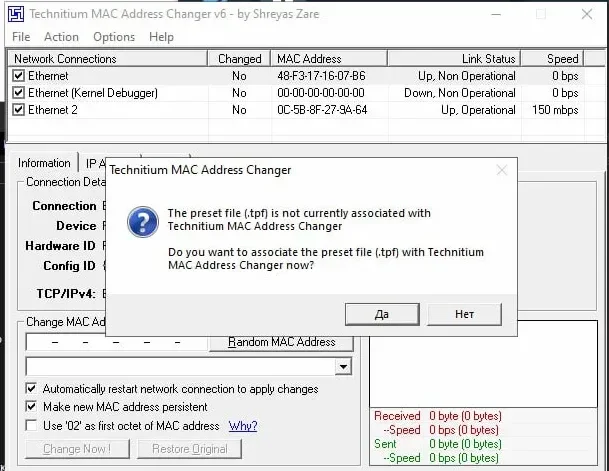
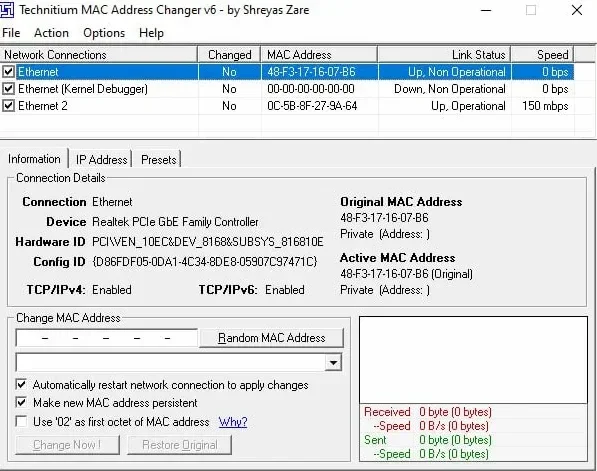
- Open the program and click “Yes”.
- Select “Ethernet”.
- Click “Random MAC Address”.
- Click “Change Now!”.
- Repeat the same actions for “Ethernet 2”.
- Disable the Wi-Fi and Bluetooth modules.
- Make sure the IP address has been changed.
Limitations and FAQ
Remember
The spoof is done only once. A separate build is created for each customer. If you try to spoof again, the whole spoof will be lost and you will be banned again.
MAC addresses did not change?
First (if present) disable the Bluetooth and Wi-Fi module through Device Manager, then change the MAC address with T-MAC Changer. For details, contact technical support.
Checklist before playing
- TPM and Secure Boot are disabled in the BIOS
- Official Windows 10/11 is installed
- BIOS is updated or rolled back
- Wi-Fi and Bluetooth modules are disabled
- IP address has been changed
TPM Spoof
The TPM spoof section: what it is for and where to get the key and the image.
Where to get the key and the image
For the TPM spoof key, the image and the instructions contact the reseller website — or the place where you bought the spoofer. Support and key delivery are handled where the purchase was made.
Who needs the TPM spoof
The TPM spoof is not required for every game. Ask the seller whether it is needed for your game.
What to include in your request
- The game you need the spoof for.
- Purchase details: order number, key or the email used at checkout.
System setup
Removing the network flag
cloud archive with the files
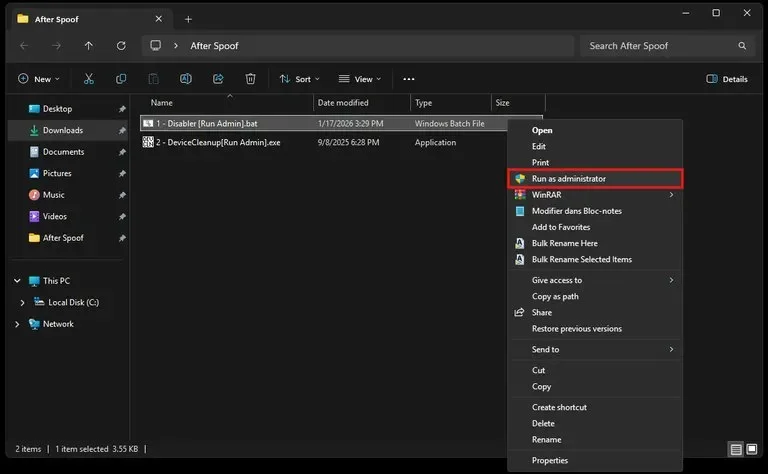
- Right-click the file
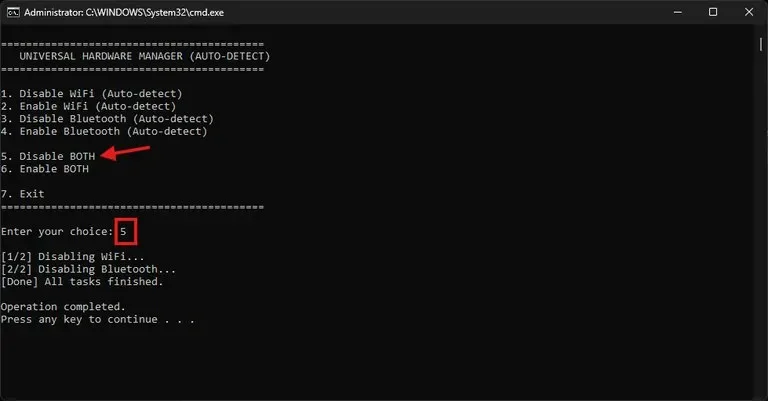
1 - Disabler [Run Admin].bat→ “Run as administrator”. - A command prompt will open. Type
5to select “Disable BOTH (WiFi & Bluetooth)”, then press Enter.
Cleaning up devices
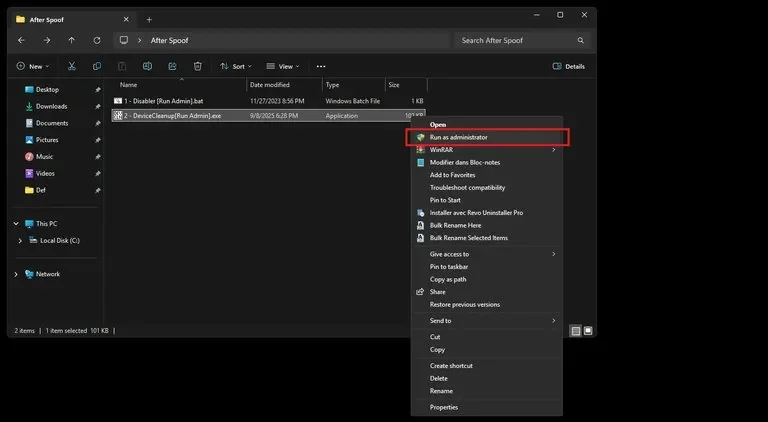
- Right-click the file
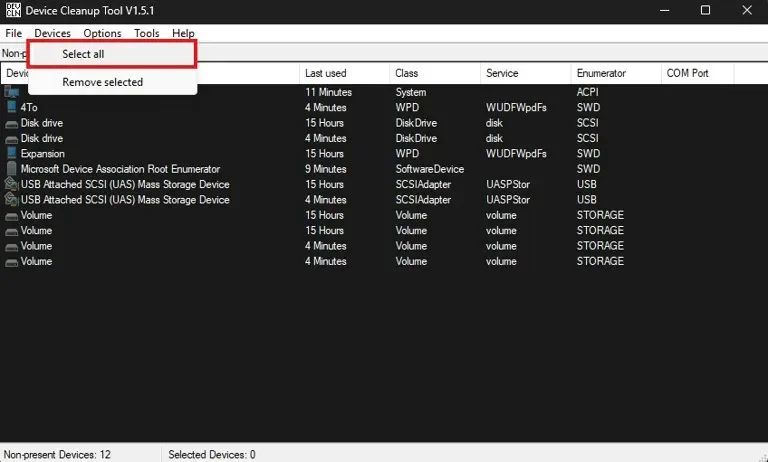
2 - DeviceCleanup [Run Admin].exeand select “Run as administrator”. - In the top menu open Devices and press Select all.
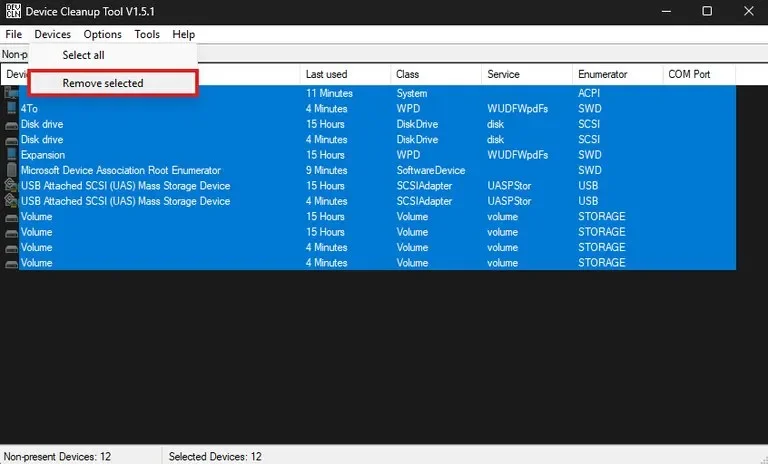
- In the Devices menu again press Remove selected.
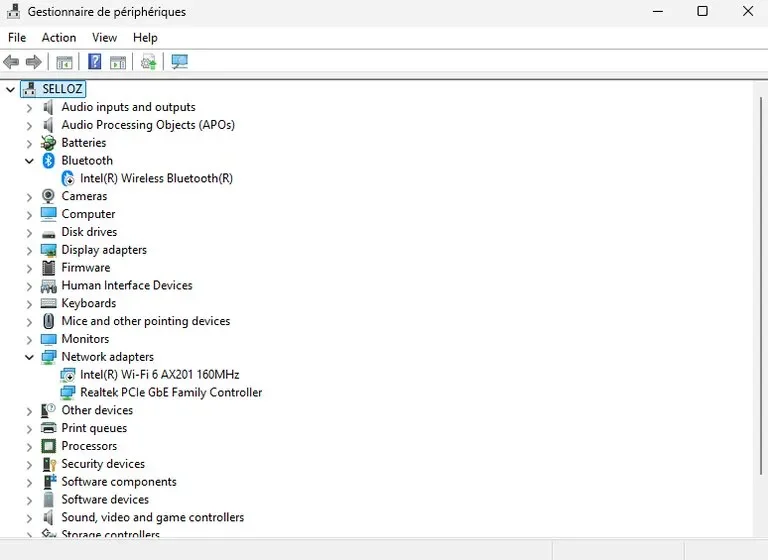
- Check: open Device Manager. Your list should be cleaned (hidden and disabled devices removed).
If Wi-Fi adapters remain
If Wi-Fi or WAN Miniport adapters are still shown, disable them manually (right-click → “Disable device”) to avoid lag or blocking. Then repeat the device cleanup.
Install and use the applications for a full system cleanup: archive with the apps.
Mandatory
Play with a VPN during the first week after the spoof. Skipping this step = ban.
Final check
How to check whether TPM is disabled
- Press Win + R, type
tpm.mscand press Enter. - If you see “Compatible TPM cannot be found” — TPM is disabled.
How to check whether Secure Boot is disabled
- Press Win + R, type
msinfo32and press Enter. - Find the “Secure Boot State” line:
Hardware ban check
- Download the games you need (Valorant, Fortnite, Rust, Tarkov, Apex and others).
- Make sure Secure Boot and TPM 2.0 are disabled in the BIOS.
- Play a few games — in Valorant usually 1–2 in unrated mode.
Check the result
Check the result in several matches. No ban during this check does not guarantee that restrictions cannot appear later.